A consistent look across the shoot.
Copy selected adjustment categories to selected photos or a whole folder. Background sidecar writes preserve the original pixels; progress, cancellation and Undo stay within reach.

project sharing and snapshot review
Share project files and the assets that belong with them.
Control which team members can access each project.
Collect comments and annotations on flat snapshots of your work.
Share finished public work in the Omadesign user showcase.
Submit public showcase work when a competition is open.
Design, layout, paint, develop and animate. Built for Linux.IllustrateLayoutPaintRefineAnimate
home directory, under 1m
curl -fsSL https://omadesign.app/install | shv0.6.8 installs into ~/.local. Brush packs, scatter, rotation, jitter, and pen pressure. What shipped · Release notes.
MORE CONTROL, FROM FIRST SHAPE TO FINAL EXPORT
DESIGN
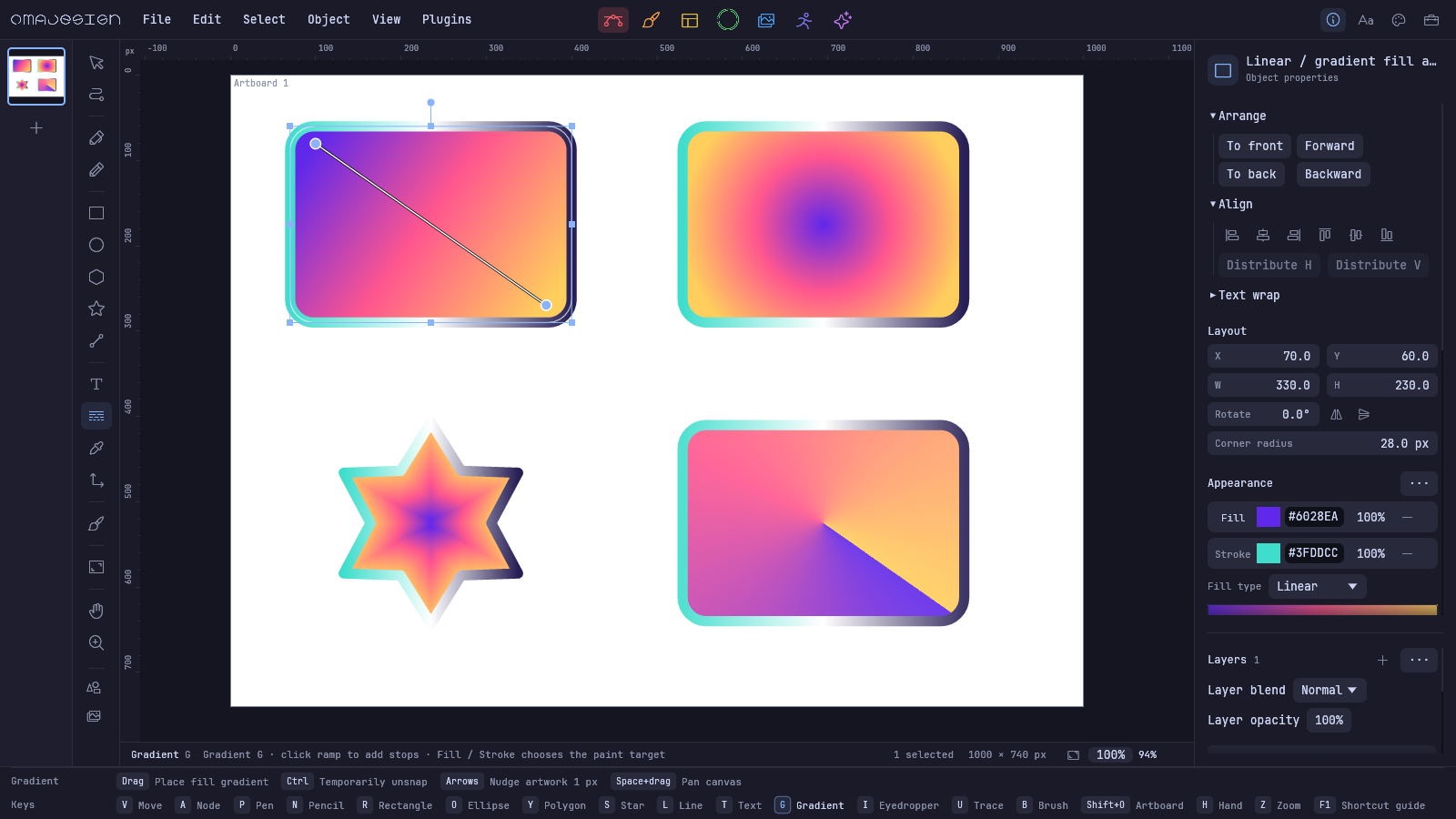
Linear, radial, shape and conic gradients. Editable stops, gradient strokes, opacity and blending—all in the same canvas.
Copy selected adjustment categories to selected photos or a whole folder. Background sidecar writes preserve the original pixels; progress, cancellation and Undo stay within reach.
Paste images, text and SVG. Reorder and nest artwork directly in the layer tree. Carry palettes, typography and assets in a portable brand kit.
Upload project versions and snapshots. Invite collaborators, collect comments and annotations, and publish selected work to the showcase.
Sharing and review ↗AGENT PANEL · HARNESS · THREADS
Open the Agent panel beside the canvas. Connect Codex, Claude, Gemini, OpenCode, or a custom ACP adapter. Create and Learn share the same native conversation UI, with saved threads, attachments, and live canvas tools when you allow edits. File and CLI workflows remain available for headless conversion.
EXAMPLE BRIEF FOR YOUR AGENT
Create an editable event campaign: a poster, a square social graphic and a wide banner. Keep the colors and typography consistent. Save SVG sources, editable Omadesign projects and PNG previews.
An AI coding agent writes the SVG source, then Omadesign imports supported shapes and text into editable layers. Review the native render, refine the source, and open the .oma file to finish by hand.
omadesign --convert poster.svg --output poster.oma
omadesign --inspect poster.oma
omadesign --convert poster.oma --output poster.pngBuilt-in Agent harness. Use the in-app Agent panel with thread history, attachments, and native design tools over ACP. Bring your own authenticated agent process; Omadesign hosts the conversation beside the canvas.
Files still matter. The CLI examples below remain a headless path for SVG ↔ .oma ↔ PNG conversion. Native painting, filters, and Layout controls stay desktop workflows.
Included in v0.6.8
Copy a look across photos, save presets, and develop a folder in the background. v0.6.8 includes layered interchange and native Linux downloads for ARM64 and x86_64.
Open supported layers, groups, masks and artboards. Import Affinity documents through an optional bridge. Save an editable .oma working copy, with conversion notes that explain what changed.
Develop a RAW photo, copy its adjustments, and apply them to selected photos or a whole folder. Save shareable .omapreset looks and keep each original’s edits in its own .omaphoto file.
Reads your Omarchy colors and desktop font at launch. Uses Catppuccin when an Omarchy theme isn’t available.
Cached rendering. Background previews, file scans, and exports. Built for ARM64 and x86_64 Linux.
Editable documents and portable brand kits on your disk. No app account. Free and open source.
Pick a tool and hold Ctrl, Shift or Alt to see its shortcuts.
Posters, identity, social, and editorial. Nine categories. Preset or custom sizes. All included, all offline.
Template library
OMADESIGN · THE FILM
Editable design, brushes, photo development, layout, and motion. Forty seconds. No audio.
Click corners, drag smooth curves, continue open paths and join endpoints. Close a shape or finish an open line.
Move points, segments and Bézier handles directly on rotated paths. Add or remove nodes, switch corners to curves and break handle symmetry.
Draw rectangles, ellipses, polygons, stars and lines. Adjust corner radius, side count and star proportions.
Sketch editable curves with the Pencil tool, then refine their points with Node.
Move, scale and rotate with canvas handles. Right-click to flip vectors horizontally or vertically. Alt-drag makes a copy; text stays live until you explicitly outline it.
Unite, subtract, intersect, exclude or divide shapes on one layer. Combine and release contours, with holes and Undo preserved.
Ctrl+G creates an editable layer group; Ctrl+Shift+G ungroups. Ctrl+8 makes a compound shape; Ctrl+Shift+8 releases it. Drag sidebar rows to sort or nest artwork.
Turn a stroke into editable filled geometry, including caps, joins and dashes. Keep the original fill underneath.
Convert a pixel layer to vector paths with adjustable threshold, color count and smoothness.
Drag guides from the rulers, move the origin and switch between pixels, millimeters, centimeters, inches and points.
Turn vector artwork into non-printing guides. Edit their contours, snap to their curves and release them back to artwork.
Snap to objects, artboards, guides and the grid. Alignment lines and equal-spacing measurements appear as you move.
Hold Shift for horizontal, vertical or 45° placement. Hold Ctrl to reverse snapping during a drag, and combine Shift with Alt-cloning.
Distort, skew, add perspective or use a nine-handle warp mesh. Editing converts live text and parameter shapes to paths; Undo restores them.
Click to start typing, add line breaks and return to existing text with a double-click. Your source stays editable.
Choose local fonts and adjust size, tracking and leading. Control kerning, ligatures, tabular figures and small caps where the font supports them.
Choose linear, radial, shape or conic. Add, move and color stops, edit their alpha, adjust the angle, and drag gradient handles on the canvas. Apply to fills or strokes.
Use the saturation × brightness box, hue, alpha or RGBA hex. Compare Current and Previous chips and click Previous to restore it. Alpha works in Design effects and gradient stops too.
Find objects with matching fills, strokes or effects, or select those with or without a property. Hidden and locked artwork stays excluded.
Add blur, shadows, outlines through dilation, color adjustments, turbulence and displacement. Effects remain adjustable and carry into SVG.
Set object, frame and layer opacity with 16 blend modes. Object opacity affects its combined fill and stroke once; frame opacity affects the subtree. Layer groups offer Pass through.
Paint on pixel layers with adjustable size and hardness. Shift constrains a stroke from its last free point.
Remove pixels, fill connected areas and smear color along the stroke. Smudge pulls paint instead of stamping a disk.
Alt-click a source, then paint. Clone tracks the offset across the stroke. Healing blends sampled texture with the destination’s local color. Undo restores the stroke.
Marquee, ellipse, lasso and wand leave a visible selection. Paint, fill, clone, heal and smudge stay inside it. Delete clears the pixels. Esc deselects.
Reveal all, hide all or start from a selection. Paint black or white, invert or remove the mask, or apply it to pixels. Live masks made from vector objects are not supported.
Sample a background color and control similarity, falloff, hardness, spill cleanup and Flow. Compare the original with a transparency preview, then apply as one undoable pixel edit.
Adjust color and tone, refine alpha, blur, sharpen, add grain or halftone, and distort with swirl or ripple. Preview first; Apply processes full-resolution pixels or masks and respects selections.
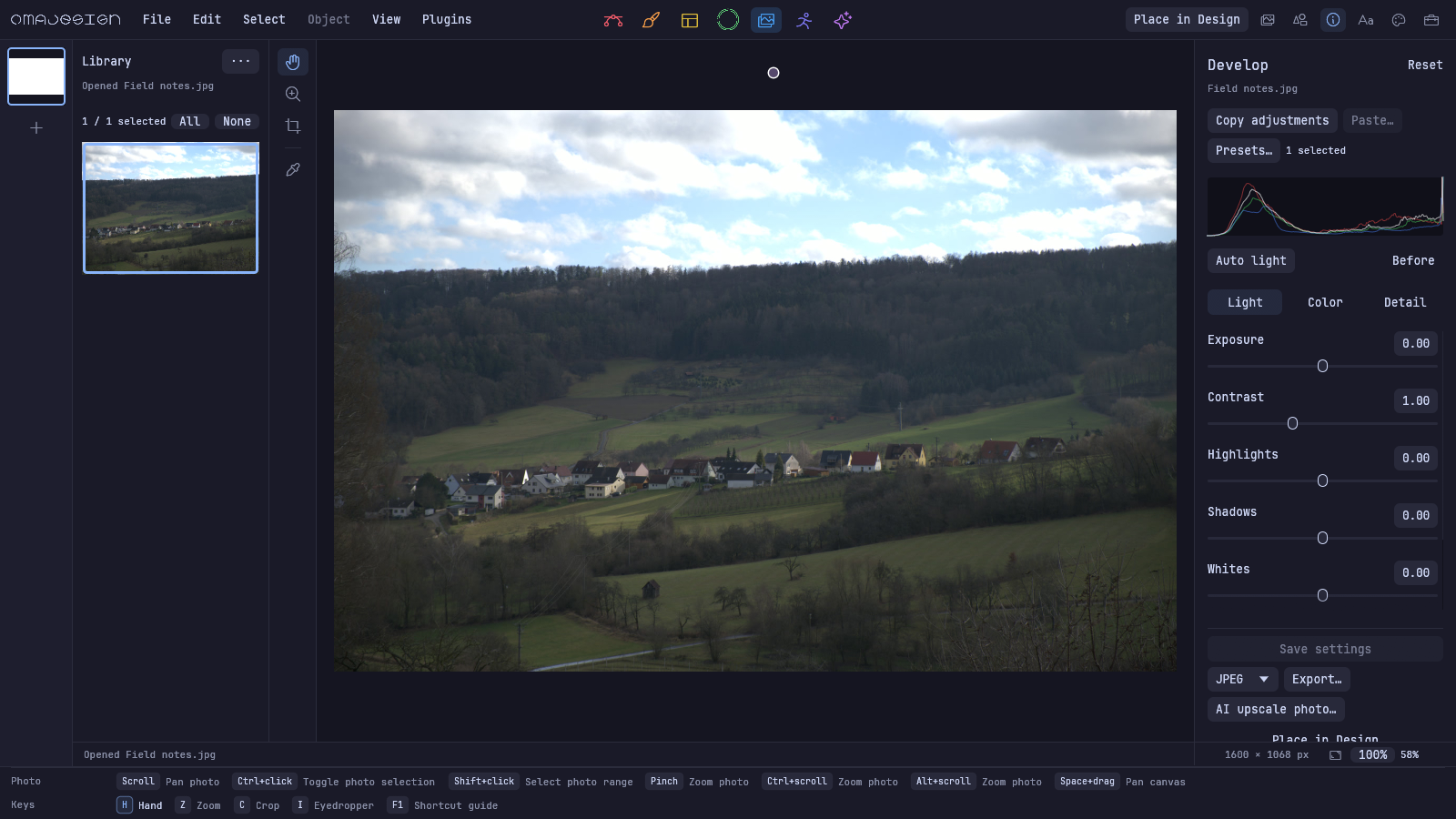
Copy one photo’s look, select a range or the whole library, and apply it in one step. Choose which adjustments travel; crop and rotation stay separate by default. Undo restores the batch.
Apply adjustments to a folder in the background without opening every RAW file. Track progress, cancel remaining work, and keep original images untouched.
Name and save a look, filter your preset library, and share it as an .omapreset JSON file. Apply it to another photo or a selected batch.
Open a folder, drop images or try the samples. Inspect the histogram and use Before to compare with the original.
Adjust exposure, contrast, highlights, shadows, whites and blacks. Refine the tone curve or start with Auto light.
Set temperature, tint, vibrance and saturation. Explore the HSL mixer, shadow/highlight grading, clarity, dehaze, grain and vignette.
Crop and rotate, inspect at 100%, export a developed JPEG in the background or place the result as a pixel layer in Design.
Open DNG, Canon CR2/CR3, Nikon NEF, Sony ARW, Fujifilm RAF and other supported camera files with the bundled decoder. Develop full-resolution 16-bit linear pixels; camera and compression coverage varies.
Save exposure, color, crop and other settings beside the original in an .omaphoto file. Reopening restores them; Undo and Redo track each photo’s edits. The original stays untouched.
Inspect source detail at 100% while work runs in the background. Export developed RAW photos to 16-bit PNG or TIFF, or 8-bit JPEG. Placement in Design becomes an 8-bit pixel layer.
Press F to draw a frame. Drag object and layer rows to sort or nest them, preserving their placement. Move complete frame subtrees and undo the move in one step.
Arrange children with gaps, per-side padding, alignment and distribution. Use Fixed, Hug or Fill on each axis, min/max sizes, absolute children, clipping and aspect ratios.
Pin, center, stretch or scale children. Override flow, spacing, column count and type size at Phone and Tablet widths, then return to the base desktop settings.
Create document-local components and linked instances. Add variants, keep local text and appearance overrides, reset them or detach an instance.
Embed images with Fill, Fit or Stretch and focal points. Bind document-local color and number variables to fills, strokes, gaps, padding and corners.
Present at different viewport widths. Click, hover or press to navigate, go back, open overlays or change variants, with instant, dissolve and slide transitions.
Export a frame subtree to PNG or SVG, or a standalone responsive HTML prototype with embedded assets and supported interactions. Export does not host a website.
Explore Fieldwork’s responsive screens, components and links. Mobile screen, landing hero, dashboard and card-stack starters remain available.
Sign in, explicitly push your source and review export, or pull a project into a separate document. Local edits never silently overwrite another designer’s version.
Invite editors and reviewers. Pin comments or draw rectangular annotations on a saved export, reply and resolve threads in the browser or desktop review window.
Publish a selected finished export with its title and description. Source files, assets and private review threads stay out of the public gallery.
Enter your own public showcase work into an open competition. Availability follows published briefs and dates; entries and withdrawals persist with your account.
Animate position, rotation, scale and opacity, plus stroke and fill reveals. The motion clip stays with the native document.
Create keys, drag them to retime, change easing and remove them. Scrub, play and loop the result on the canvas.
Try Draw stroke, Pop in, Slam, Shake, Fill up, four slide directions, Fly, Zoom, Buzz and Fade in.
Set duration, delay, stagger, intensity and the starting playhead position. Presets create ordinary keys you can refine or undo.
Export animated SVG with masks and effects, or Lottie for supported vector animation. Lottie reports unsupported pixels, layer masks and effects.
Search nine categories of editable designs, all available locally. Artwork and copy adapt to portrait, square and landscape proportions.
Start with print, screen, social, identity or photo sizes, or enter your own dimensions and DPI. Templates use the size you choose.
Create, name, duplicate and filter palettes. Collect colors from artwork, add transparent hex values and apply swatches to fill or stroke.
Collect logos, images and native artwork in searchable folders. Background previews and refresh keep the bank in step with files on disk.
Drag a brand tile onto an artboard or double-click to center it. Native assets retain editable artwork and motion, with one Undo per placement.
Add TTF or OTF files, name roles and apply them to live text. Font files travel with the project without a system installation.
Share palettes in .omacolors, font roles in .omatype and artwork plus fonts in .omabrand/. Import or save copies from the sidebar.
Switch between Design, Pixel, Photo and Motion. Keep several documents open and move between them without closing your work.
Expand vector layers to find individual objects. Select, name, hide, lock and reorder artwork from the layer stack.
Draw, name, move, resize, rotate or clone artboards. Wrap a selection in a board and show bleed or safe-area guides.
Copy, cut, paste and duplicate objects. Copy a style separately and apply it to other artwork without replacing its geometry.
The Shortcut HUD follows your tool and held modifiers without moving the canvas. Toggle it with Ctrl+/ or open the full key list with F1.
Omarchy colors and your desktop font shape the interface at launch. Pan with Space, pinch to zoom, or drag a zoom box.
Changed documents recover in the background, including project fonts. Save prompts and library conflict notices help protect unsaved artwork and palette drafts.
Open .oma, SVG, PNG, JPEG, WebP, GIF, BMP and TIFF. SVG uses a supported subset; Lottie has a separate basic shape-animation importer.
Import supported PSD/PSB layers and masks, multi-page PDF and PDF-compatible AI artwork, SVG/SVGZ groups and OpenRaster layers. Photoshop text and smart objects use saved layer pixels. EPS/PS requires Ghostscript.
Open GIMP .xcf files as pixel layers and groups, with names, visibility, opacity, offsets, supported blends and applied masks. Text and effects become pixels. Export OpenRaster or PSD back to GIMP.
Import supported .afdesign, .afphoto, .afpub, template and package documents with an optional converter. Compatibility is partial; many effects and publishing features are lost. New unified .af support awaits verification with a real document.
Share supported layer structures and PDF pages, with conversion notes for substitutions or flattened appearances. Keep .oma as the editable working source. Native AI and Affinity writing are not available.
Export still artwork with selectable raster scale. SVG keeps vector geometry and outlines project-font text; .oma retains the editable source.
Browse Google Fonts and icon libraries, or search Pixabay and Pexels with your API keys. Local templates and bundled Phosphor shapes work offline.
See the format guide for import, export and compatibility limits, or the manual for editing workflows.
omadesign is an alpha Linux app. Release downloads are available for x86_64 and ARM64 Linux, with a glibc 2.35 baseline. ARM64 includes Linux on Apple Silicon through Asahi; it is not a macOS build. Omarchy integration is built in, with fallback colors and fonts for other desktops.
Yes. v0.6.8 includes layered interchange, camera RAW development, batch photo adjustments, shareable presets and 16-bit photo export alongside the existing studios, templates and brand tools. Affinity import requires a separate optional bridge setup. The app remains an alpha; the format guide explains compatibility limits.
Import supported .afdesign, .afphoto and .afpub artwork through the optional Affinity bridge. This is partial compatibility: most adjustments, live effects and publishing structures are not retained. The bridge includes new unified .af support, but a real .af document has not yet been verified. Keep your original; native Affinity export is not available.
Core editing, local brand libraries and all 52 templates need no omadesign account or internet connection. Downloading fonts or icons and searching online photos requires a connection. Pixabay and Pexels search also require your own provider API keys.
Copy the .oma document together with .omacolors, .omatype and the complete .omabrand folder. Project fonts stay inside .omabrand/fonts so text remains editable on another machine. Palette and typography edits have their own save controls; save those drafts before sharing the folder.
Live vector-object masks, adjustable raster effect stacks, rich inline text, native Figma/Framer interchange and simultaneous multi-user editing are not available. Components and variables stay document-local. Cloud shares files and review snapshots. There is no complete Affinity/Illustrator round trip or PDF/X/CMYK print workflow. Lottie cannot preserve pixels, masks, effects, or shape/conic gradients; animated SVG supports their rendered appearance.
Native Linux support, Omarchy theme integration, portable brand dotfiles, and vector design, painting, photo editing, and animation in one app. omadesign is an independent alpha.